| Previous | Next |
| STATUS_CLOUD_FILE_UNSUCCESSFUL | STATUS_CLOUD_FILE_IN_USE |
STATUS_CLOUD_FILE_NOT_UNDER_SYNC_ROOT
A sync engine is a service that syncs files, typically between a remote host and a local client. Sync engines on Windows often present those files to the user through the Windows file system and File Explorer. Before Windows 10, version 1709, sync engine support in Windows was limited to scenario-agnostic ad-hoc surfaces, such as File Explorer’s navigation pane, the Windows system tray, and (for more technical applications) file system filter drivers.
Windows 10 version 1709 (also called the Fall Creators Update) introduced the cloud files API. This API is a new platform that formalizes support for sync engines. The cloud files API provides support for sync engines in a way that offers many new benefits to developers and end users.
The cloud files API contains the following native Win32 APIs and Windows Runtime (WinRT) APIs:
- Cloud Filter API: This native Win32 API provides functionality at the boundary between the user mode and the file system. This API handles the creation and management of placeholder files and directories.
Placeholder files
- Sync engines can create placeholder files that consume only 1 KB of storage for the filesystem header, and that automatically hydrate into full files under normal use conditions. Placeholder files present as typical files to apps and to end users in the Windows Shell.
Standardized sync root registration
- Registering a sync root is straightforward and standardized. This includes creation of a branded node in the navigation pane of File Explorer, as shown in the following screenshot. Roots can be created either as individual top-level entries, or as children of a parent grouping.
Shell integration
- State icons:
- The cloud files API provides standardized, automatic hydration state icons shown in File Explorer and on the Windows desktop.
- Replaces legacy icon overlay Shell extensions.
- Progress indication:
- Opening a placeholder file that takes more than a few seconds to hydrate will show hydration progress. Progress is shown in a few locations depending on context:
- In a copy engine dialog window.
- Opening a placeholder file that takes more than a few seconds to hydrate will show hydration progress. Progress is shown in a few locations depending on context:
- Thumbnails and metadata:
- Placeholder files can have rich service-provided thumbnails and extended file metadata to provide the user with a seamless File Explorer experience.
- File Explorer navigation pane:
- Registering a sync root with the cloud files API causes that sync root (with an icon and custom name) to appear in File Explorer’s navigation pane.
- File Explorer context menus:
- Registering a sync root with the cloud files API automatically provides several verbs (menu entries) in File Explorer’s context menu that let the user control the hydration state of their file.
- User control of file hydration:
- Users are always in control of file hydration, even when the files are not hydrated explicitly by the user. An interactive toast is shown for background hydration to alert the user and provide options. The following image demonstrates a toast notification for a hydrating file.
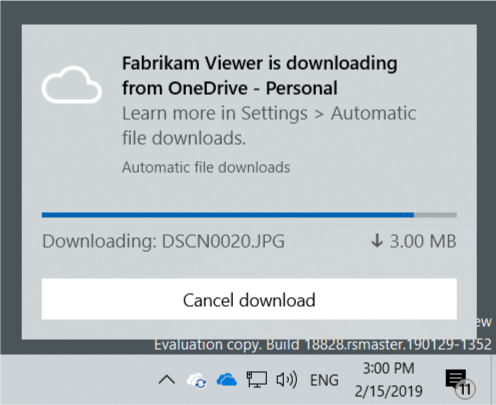
- Users are always in control of file hydration, even when the files are not hydrated explicitly by the user. An interactive toast is shown for background hydration to alert the user and provide options. The following image demonstrates a toast notification for a hydrating file.
- Hooking copy engine operations (supported in Windows 10 Insider Preview Build 19624 and later versions):
- Cloud storage providers can register a shell copy hook for monitoring file operations within their sync root.
- The provider registers their copy hook by setting the CopyHook registry value under their sync root registry key to a the CLSID of their COM local server object. This local server object implements the IStorageProviderCopyHook interface.
Official references for STATUS_CLOUD_FILE_NOT_UNDER_SYNC_ROOT
- Microsoft Open Specifications: NTSTATUS values
- Microsoft: Using NTSTATUS values
- Microsoft: Build a cloud file sync engine
Looking for a different code? Search another status or error code.